1 Account Creation
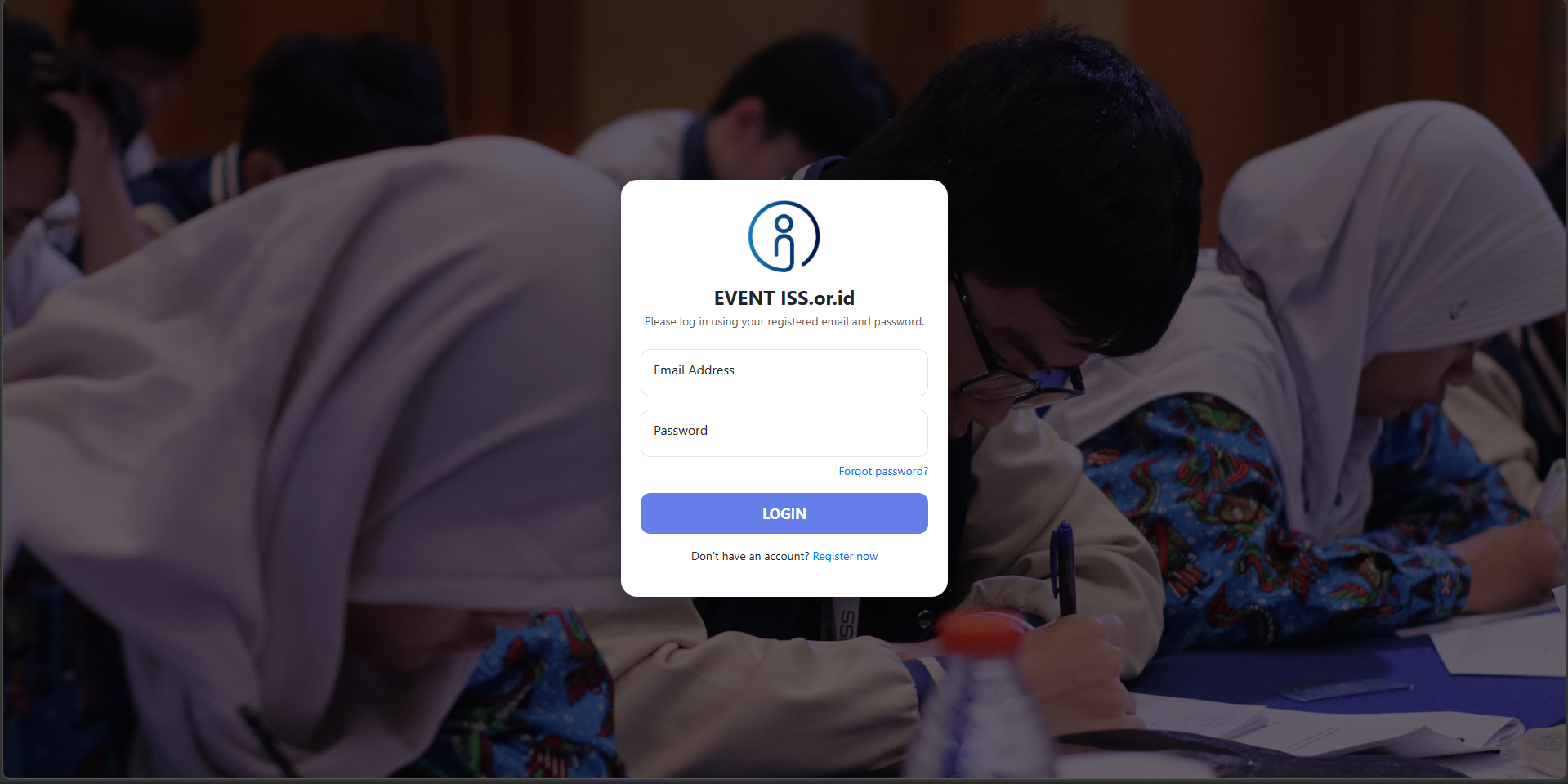
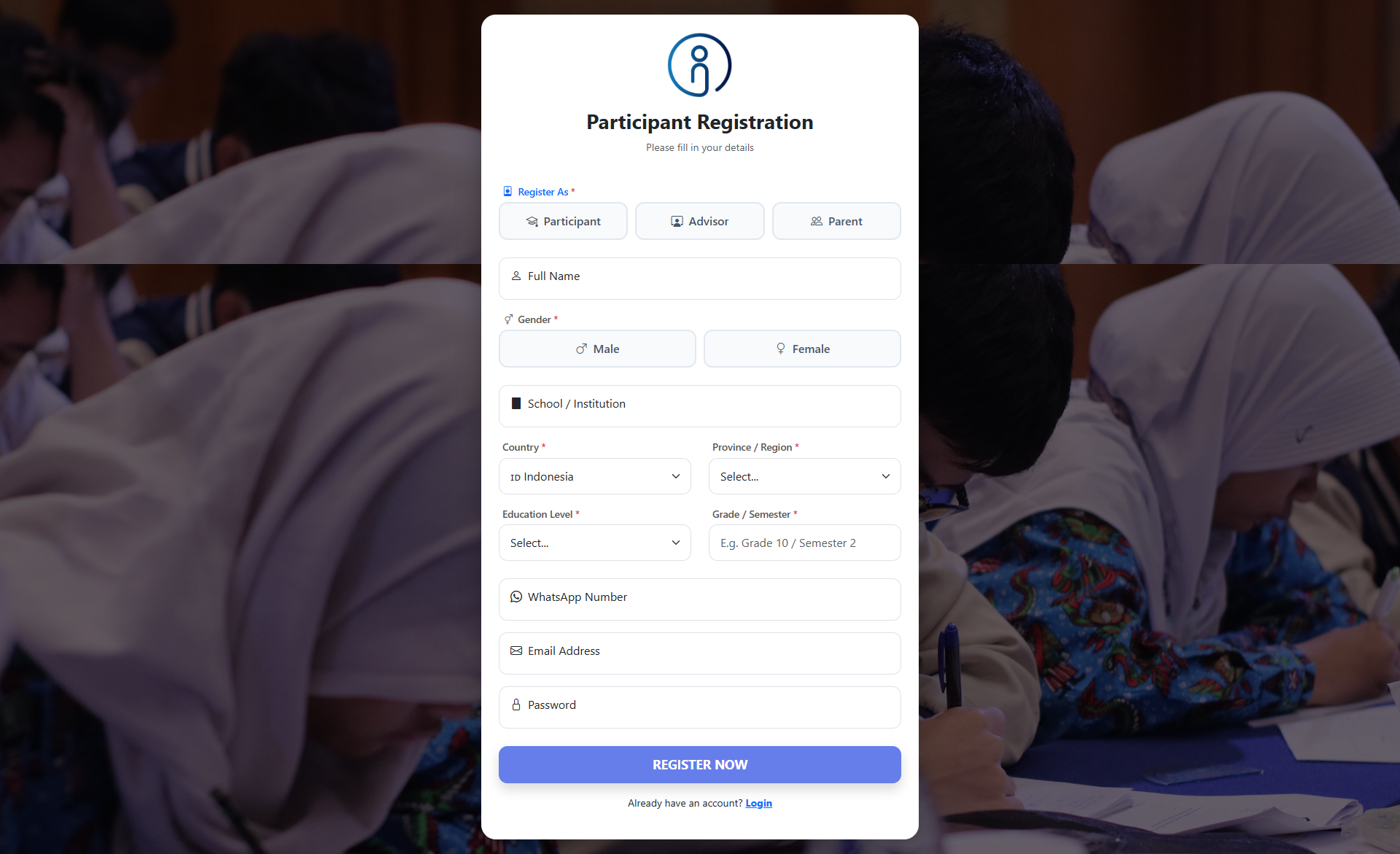
Please visit the official portal at event.cbt-iss.or.id. If you do not possess an account yet, click the "Register now" link at the bottom of the login form. You will be directed to the Participant Registration page. Carefully complete all the required fields in the registration form with your valid information, then click the "Register Now" button to finalize your account creation.
2 Dashboard Login
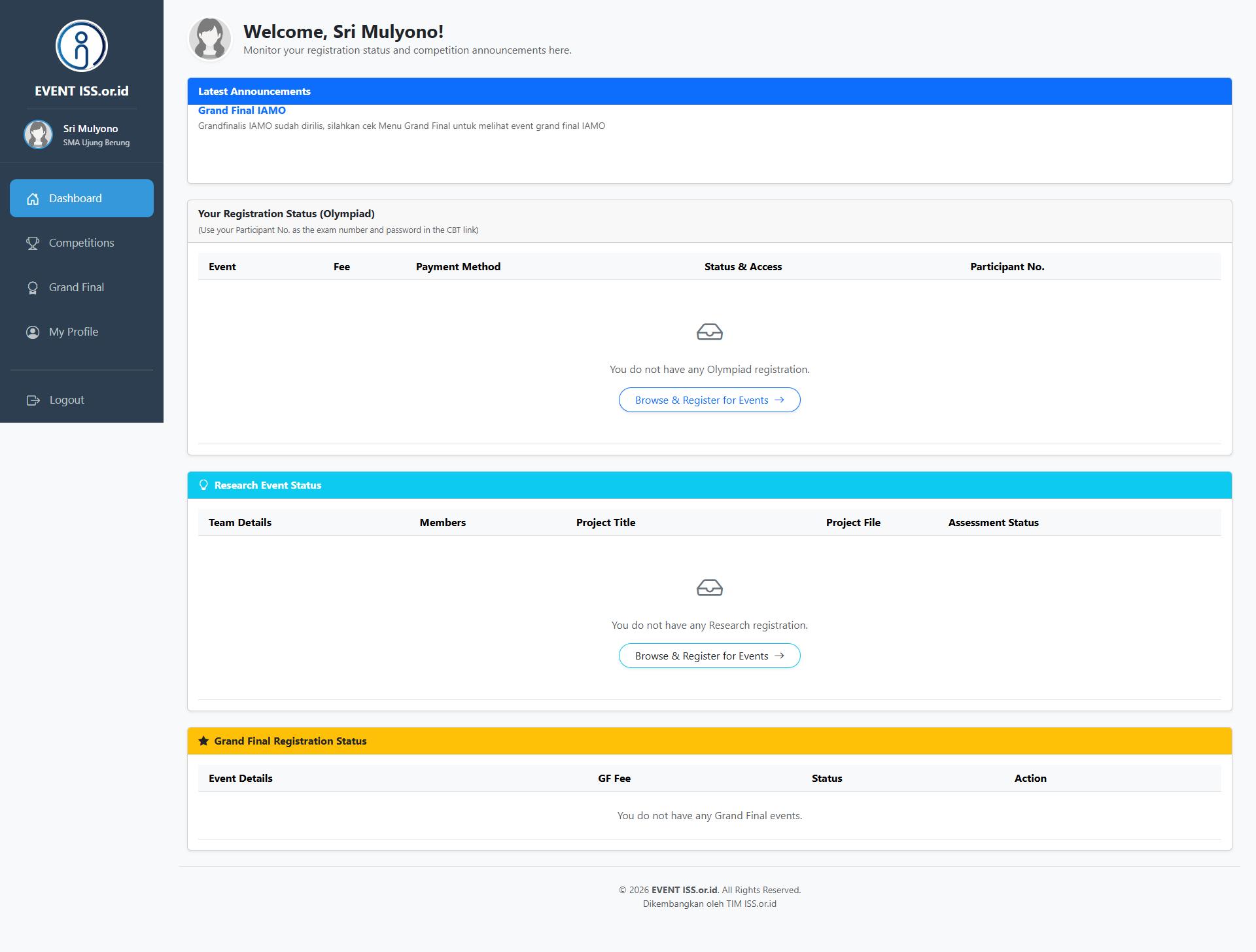
Return to the main page at event.cbt-iss.or.id. Enter your newly registered Email Address and Password, then click "Login". Upon a successful login, you will be redirected to your personal Dashboard. This page serves as your central hub for monitoring event registration statuses and important announcements.
3 Exploring Competitions
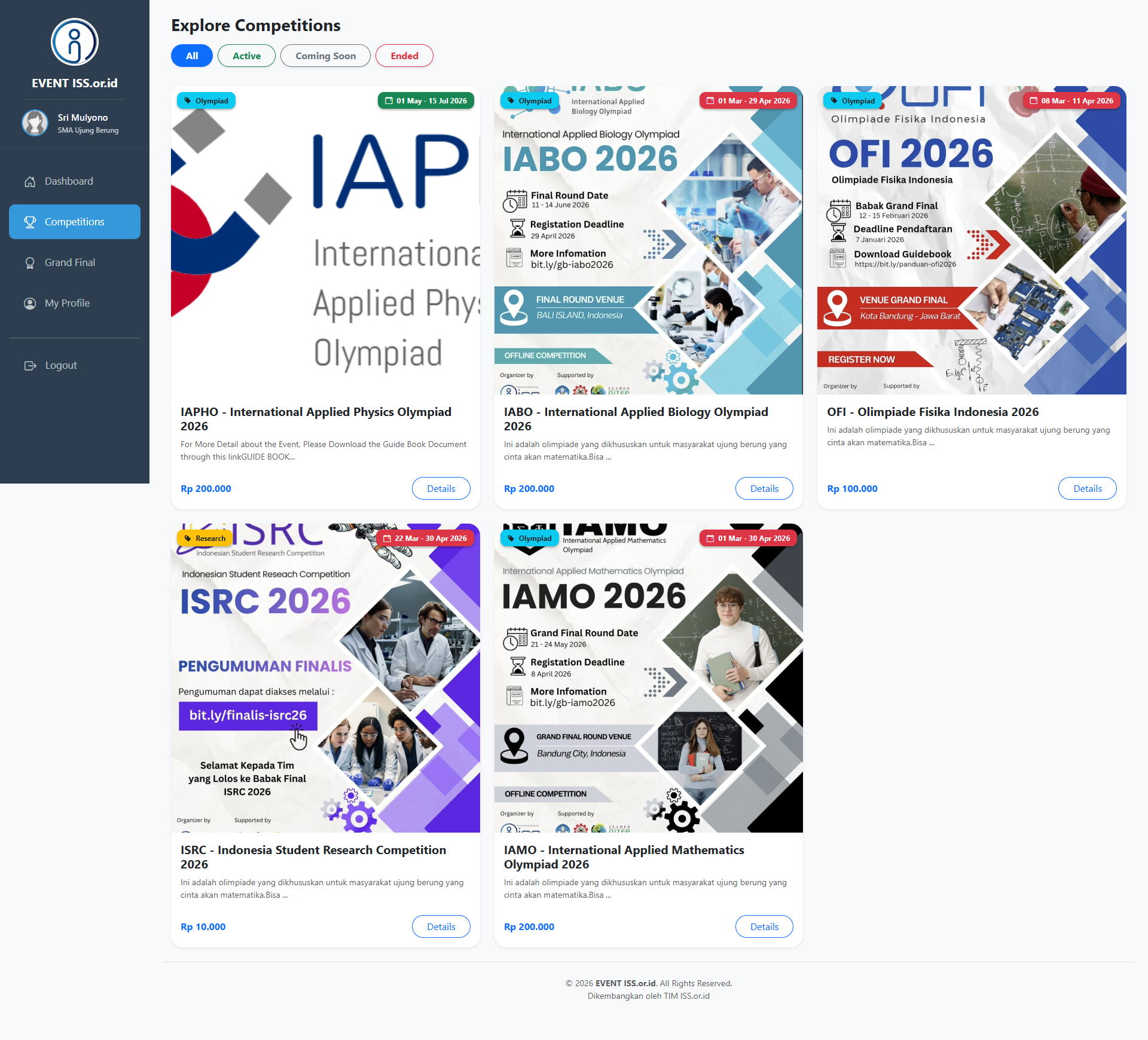
To discover available events, click on the "Competitions" menu located on the left-hand navigation sidebar. This section displays a complete catalog of upcoming olympiads, research events, and other academic competitions. You can browse through the cards to find events that match your interests.
4 Event Registration
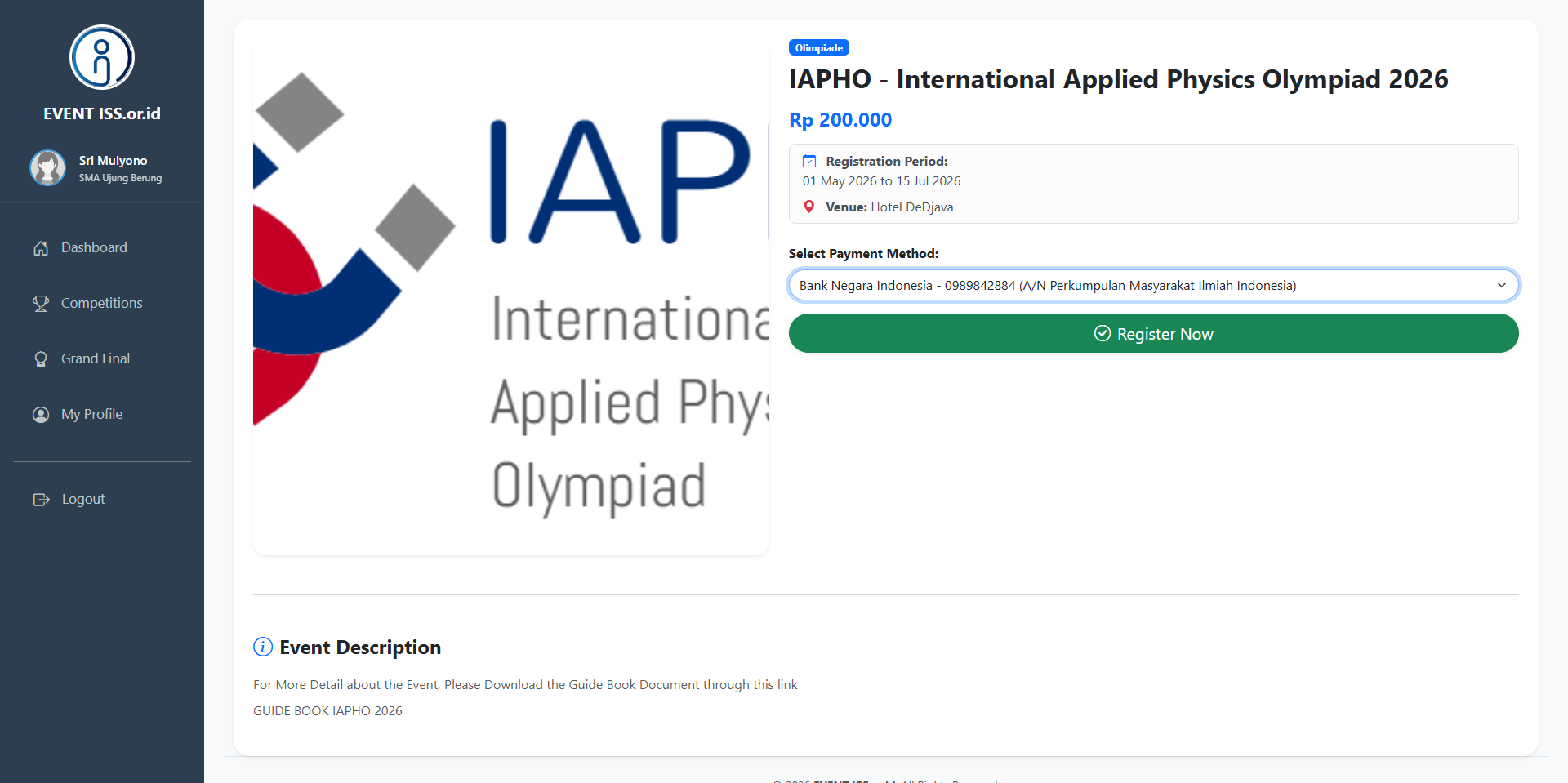
Once you find an event you wish to join, click the "Details" button on the specific event card to enter the event's detail page. Review the event descriptions, dates, and fees carefully. Next, select your preferred payment method from the dropdown menu, and click the green "Register Now" button to initiate your enrollment for the event.
5 Uploading Payment Proof
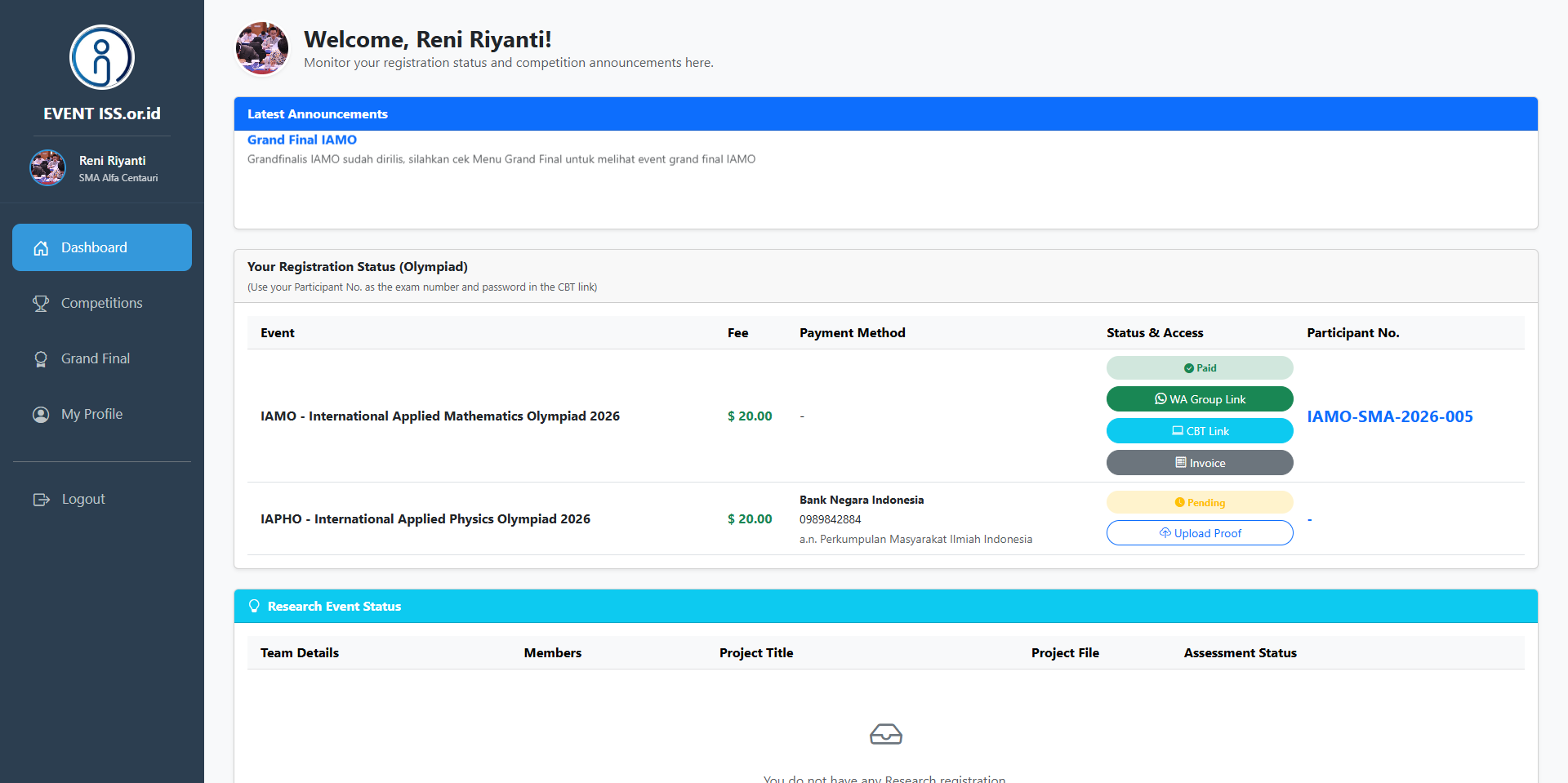
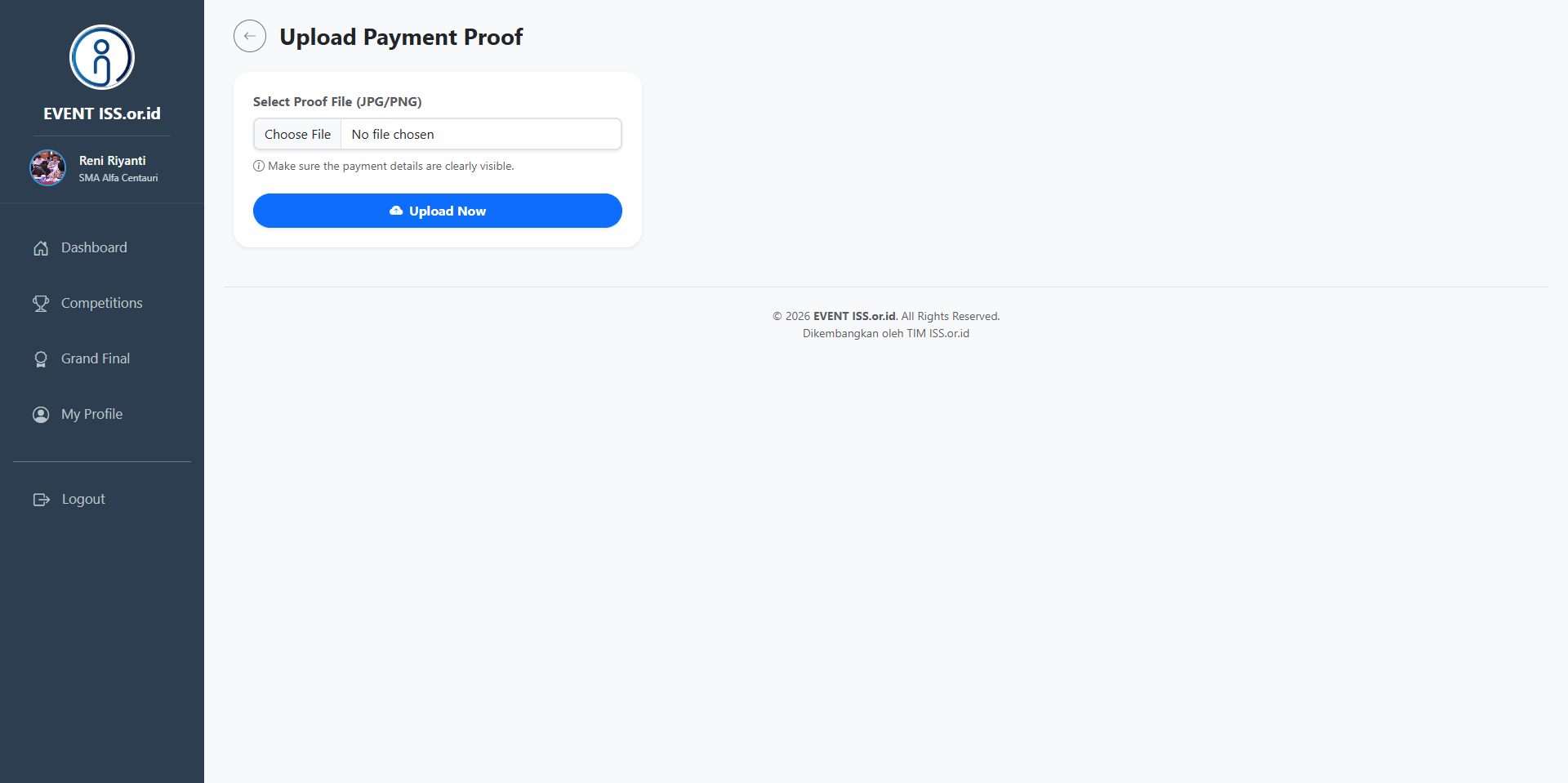
After registering for an event, it will appear on your Dashboard under the Registration Status section with a "Pending" status. To complete your registration, click the outline button labeled "Upload Proof". You will be redirected to the payment verification page. Click "Choose File" to select your payment receipt image (JPG or PNG format), ensure the details are clearly visible, and click the blue "Upload Now" button.
6 Checking Registration Status
Navigate back to your Dashboard periodically to monitor your registration status. Once the administrative team verifies your uploaded payment proof, the status will automatically update to a green "Paid" badge.
At this point, new action buttons will become accessible, including your Participant Number, a CBT Link (for examinations), an Invoice, and a WhatsApp Group Link. It is highly recommended to join the WhatsApp Group immediately to ensure you receive all crucial updates and communications regarding your chosen event.